


1. 위치정보 관련
@interface GpsLayer : CCLayer <CLLocationManagerDelegate, MKMapViewDelegate> {
CLLocationManager* locationManager;
CCLabelTTF *label;
}
@property (nonatomic, retain) CLLocationManager* locationManager; //
구현
-(void)locationManager:(CLLocationManager *)manager didUpdateToLocation:(CLLocation *)newLocation fromLocation:(CLLocation *)oldLocation
{
NSLog(@”델리게이트 호출#1″);
label = [CCLabelTTF labelWithString:@”Test” fontName:@”HelveticaNeue-CondensedBlack” fontSize:64];
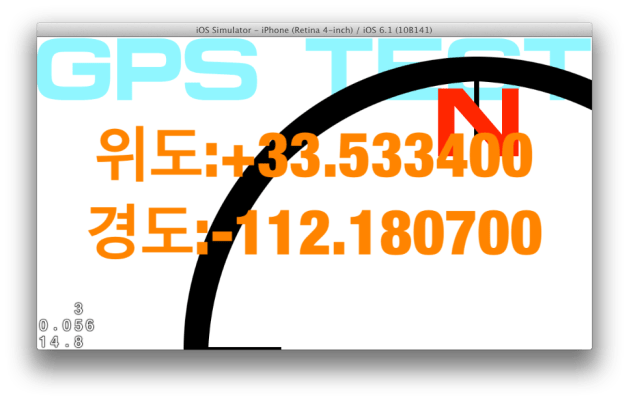
[label setString:[NSString stringWithFormat:@”위도:%+6fn경도:%+6fn”,newLocation.coordinate.latitude,newLocation.coordinate.longitude]];
// ask director for the window size
CGSize size = [[CCDirector sharedDirector] winSize];
// position the label on the center of the screen
label.position = ccp( size.width /2 , size.height/2 );
[label setColor:ccc3(255,128,0)]; // 오브젝트의 색상을 변경
// add the label as a child to this Layer
[self addChild: label];
}
-(void)locationManager:(CLLocationManager *)manager didFailWithError:(NSError *)error
{
if ([error code]==kCLErrorDenied)
{
NSLog(@”위치정보취득은 허가되어있지 않음“);
}else{
NSLog(@”위치정보 취득 실패“);
}
}
2. 나침반 이용
추가한 것.
[locationManager startUpdatingHeading]; // 컴파스 시작 -> 시스템에서 부를 수 있는지 체크하도록 바꿔줘야함 전체적으로. 위치값, 방위값 모두
// locationManager.headingFilter = 5; // 5도씩 필터
-(void)locationManager:(CLLocationManager *)manager didUpdateHeading:(CLHeading *)newHeading {
if (newHeading.headingAccuracy >0 ) {
magneticHeading = newHeading.magneticHeading;
float trueHeading = newHeading.trueHeading;
sprite.rotation = –magneticHeading + 90; // 나침반 그림 회전 (-는 회전 방향 교정, +90은 그림 초기 각도 보정)
}
}
3. update 관련 체크해서 적용하기.




답글 남기기